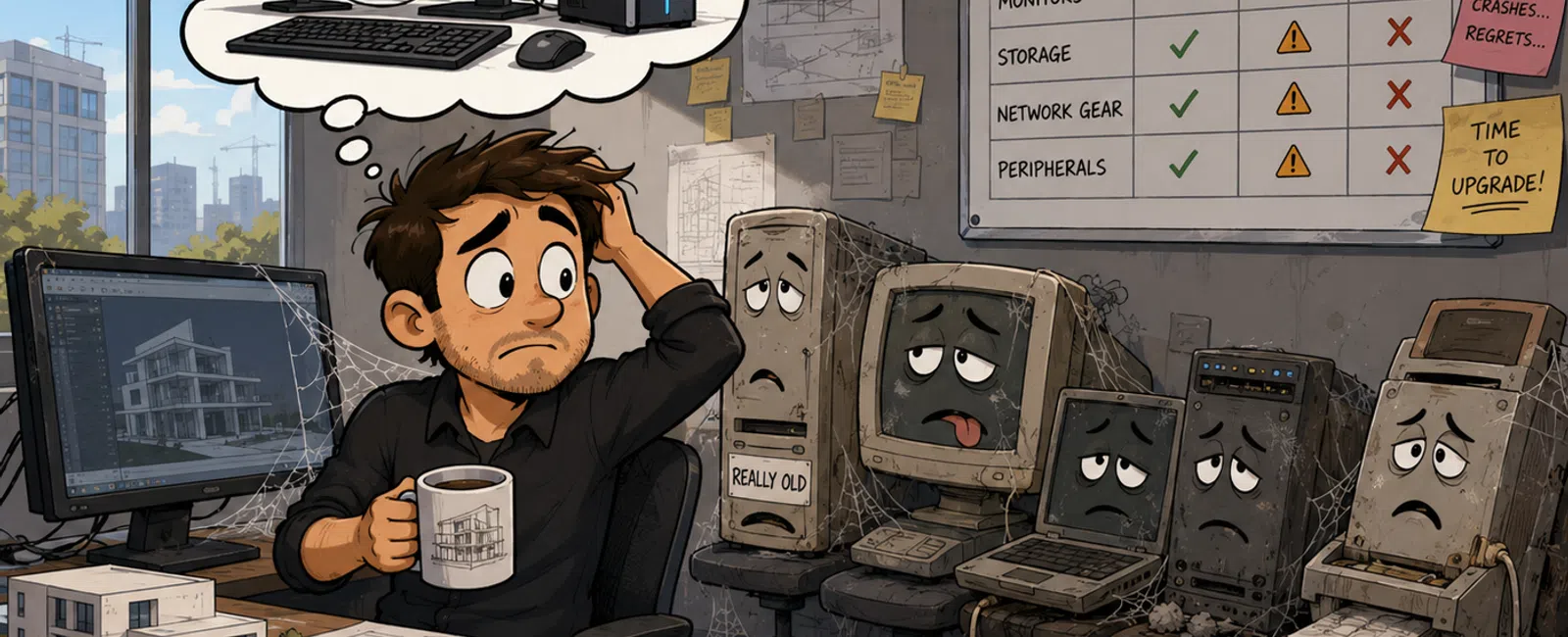
Recommended Hardware Replacement Cycles for Architecture Firms
Most architecture firms should plan to replace primary Autodesk Revit workstations every four to five years. High-performance BIM, visualization, rendering, and point-cloud workstations may need replacement every three to four years, while monitors and lightly used business computers may remain productive for five to seven years.
Servers, firewalls, switches, wireless access points, battery backups, and other infrastructure should also have documented replacement dates. Waiting for equipment to fail creates avoidable downtime, emergency purchases, inconsistent hardware, and project disruption.
A practical lifecycle standard for a 25–50 person architecture firm is:
| Technology | Typical Planning Cycle | Primary Replacement Trigger |
|---|---|---|
| Standard Revit workstation | 4–5 years | Performance, reliability, warranty, or software compatibility |
| Advanced BIM workstation | 3–4 years | Large models exceed available processor, memory, graphics, or storage capacity |
| Visualization workstation | 3–4 years | Rendering delays affect deadlines or newer software requires stronger GPU resources |
| Business laptop | 4–5 years | Battery degradation, reliability, performance, or warranty expiration |
| Server | 5–7 years | Warranty expiration, capacity, security support, or infrastructure redesign |
| Firewall | 4–6 years | Vendor support, throughput, security features, or licensing changes |
| Network switches | 5–8 years | Support status, port capacity, speed, reliability, or power requirements |
| Wireless access points | 4–6 years | Coverage, capacity, wireless standards, security, or vendor support |
| Battery backup | 3–5 years | Battery health, runtime, load capacity, or failed testing |
| Monitors | 5–7 years | Failure, image quality, resolution, ergonomics, or changing workflows |
These are planning ranges rather than automatic replacement rules. Each asset should be evaluated by employee role, performance, warranty, security support, failure history, business importance, and the cost of downtime.
The Five-Part Architecture Hardware Lifecycle Framework
1. Inventory Every Business-Critical Asset
A lifecycle plan begins with a complete technology inventory. The firm should know what it owns, who uses it, where it is located, when it was purchased, when support expires, and when replacement is expected.
Track at least:
- Employee workstations and laptops
- Processors, memory, graphics cards, and storage
- Monitors, docks, and specialized peripherals
- Servers and storage systems
- Firewalls, switches, and wireless access points
- Battery backups
- Plotters, scanners, and printers
- Conference-room systems
- Cloud-hosted virtual machines
- Operating-system versions
- Warranty and vendor-support dates
- Autodesk and other critical application requirements
An inventory spreadsheet is better than no inventory, but firms should eventually maintain this information through a managed asset platform that can identify hardware specifications, encryption status, operating-system versions, installed software, and device health.
2. Assign Every Asset a Lifecycle Category
Do not replace every computer on the same schedule. Architecture firms should separate equipment by workload and business importance.
| Lifecycle Category | Typical Users or Systems | Planning Priority |
|---|---|---|
| Mission-critical production | Revit users, BIM managers, visualization specialists, file servers, firewalls, and core switches | Replace before reliability or performance becomes a project risk |
| Standard business | Project managers, accounting, administration, marketing, and business development | Replace according to performance, warranty, and security requirements |
| Light or shared use | Conference rooms, training stations, review computers, and reception systems | May remain in service longer when secure and reliable |
| Spare equipment | Preconfigured replacement laptops and workstations | Maintain enough capacity to reduce downtime after a failure |
| Infrastructure | Servers, storage, firewalls, switches, wireless systems, and battery backups | Replace through planned projects before vendor support ends |
This classification helps leadership fund the assets that create the greatest operational risk rather than replacing equipment only by age.
3. Define Replacement Triggers
Age is only one replacement factor. A three-year-old workstation may still be productive, while a newer system may already be unsuitable for a visualization specialist.
Use measurable replacement triggers:
- Warranty coverage has expired
- The operating system is approaching end of support
- Autodesk or another critical application no longer supports the hardware
- Revit models regularly exceed available memory
- Rendering time interferes with project delivery
- Storage is consistently near capacity
- The device has repeated failures
- Battery capacity is no longer practical
- The workstation cannot support required security controls
- Repair cost is too high relative to replacement
- Employee downtime exceeds the cost of upgrading
- The system no longer fits an approved workstation tier
Documenting these triggers makes replacement decisions more consistent and easier to explain during budgeting.
4. Create a Rolling Three-to-Five-Year Budget
A lifecycle budget should show which assets are expected to be replaced in each future year. This prevents a firm from discovering that 20 production workstations, a firewall, and a server all require replacement at the same time.
For each asset, record:
- Target replacement year
- Estimated replacement cost
- Implementation and migration cost
- Required warranty
- Software or licensing implications
- Employee role
- Business impact
- Replacement priority
Review the plan at least annually and update estimates when staffing, project types, office locations, software, or cloud strategy changes.
5. Standardize Purchasing and Deployment
Emergency purchasing often produces a mixture of consumer laptops, inconsistent graphics cards, different docks, short warranties, and systems that cannot be supported efficiently.
Architecture firms should maintain approved standards for:
- Professional Revit workstations
- Advanced BIM workstations
- Visualization and rendering systems
- Mobile workstations
- Standard business laptops
- Monitors and docks
- Warranty coverage
- Operating systems
- Encryption and endpoint security
- Deployment and data migration
Standardization reduces purchasing delays, improves support, simplifies imaging and application deployment, and makes spare equipment more useful.
Why Revit Workstations Often Need a Shorter Lifecycle
Architecture workstations carry heavier workloads than typical office computers. A Revit user may simultaneously run:
- Autodesk Revit
- AutoCAD
- Navisworks
- Bluebeam
- Microsoft Teams
- Outlook
- Several browser-based project systems
- Rendering or visualization software
- Point-cloud tools
- Adobe applications
As project files, linked models, texture libraries, point clouds, and application requirements grow, the workstation may become a productivity bottleneck before it physically fails.
Common symptoms include:
- Slow model opening
- Long synchronization times
- Frequent application freezes
- Memory utilization remaining near capacity
- Slow view generation
- Rendering delays
- Limited local storage
- Excessive fan noise or thermal throttling
- Difficulty running several applications simultaneously
Not every Revit performance problem requires a new workstation. Network latency, storage, BIM model health, linked files, add-ins, cloud synchronization, and remote-access design should also be investigated. 911 IT helps architecture and engineering firms evaluate the complete environment through its IT support for engineering firms.
How to Determine Whether a Revit Workstation Should Be Replaced
Use a six-question evaluation rather than replacing systems based only on employee complaints.
- Is the workstation still under a business-class warranty? An expired warranty increases the potential length and cost of downtime.
- Does it meet the employee's current workload? Compare processor, memory, graphics, and storage against representative projects.
- Can it support the required software? Confirm compatibility with Windows, Autodesk applications, security tools, and plug-ins.
- Is the device reliable? Review crashes, repairs, support tickets, battery health, and hardware alerts.
- Can it be upgraded economically? Memory or storage upgrades may extend useful life, but upgrades should not be used to preserve an otherwise obsolete platform.
- What is the cost of keeping it? Include employee waiting time, support labor, project delays, and the risk of failure.
Revit Workstation Replacement Scorecard
| Category | Keep in Service | Plan Replacement | Replace Soon |
|---|---|---|---|
| Age | Less than 3 years | 3–5 years | More than 5 years |
| Warranty | More than 12 months remaining | Expires within 12 months | Expired |
| Memory | Supports normal workloads with capacity available | Frequently approaches capacity | Regularly exhausted and cannot be upgraded appropriately |
| Storage | Fast NVMe storage with adequate free capacity | Capacity is becoming limited | Drive is slow, unreliable, or consistently full |
| Reliability | No significant recurring issues | Occasional hardware or application problems | Repeated failures, crashes, or repairs |
| Performance | Meets the user's project needs | Noticeably slower on large projects | Regularly delays project work |
| Security | Supports all required controls | Requires exceptions or workarounds | Cannot support current security standards |
A system with several “plan replacement” conditions should be placed in the next budget cycle. A system with multiple “replace soon” conditions should be treated as an operational risk.
Should Architecture Firms Upgrade or Replace Workstations?
An upgrade can be appropriate when the workstation has a modern processor, active warranty, adequate cooling, and a clear component bottleneck.
Upgrades That May Extend Useful Life
- Increasing memory from 32 GB to 64 GB
- Replacing a small drive with a larger NVMe SSD
- Replacing a failed battery
- Adding a supported graphics card to an appropriate desktop
- Replacing an unreliable dock
- Adding monitors that better fit the employee's workflow
Situations Where Replacement Is Usually Better
- The processor is too slow for current Revit workloads
- The system is beyond its warranty period
- The laptop cannot be upgraded
- The motherboard or other major component is failing
- The operating system is no longer supported
- The workstation cannot meet security requirements
- Several components would need to be replaced
- A new graphics card would exceed the system's power or cooling capacity
- Repeated support incidents are affecting productivity
Before upgrading, compare the cost, expected remaining life, warranty, and employee disruption against a new workstation.
How Often Should Servers Be Replaced?
Architecture firms should generally plan for a server lifecycle of approximately five to seven years, depending on warranty, workload, capacity, redundancy, operating-system support, and the firm's cloud strategy.
Replace or redesign server infrastructure when:
- The manufacturer warranty is ending
- The operating system is approaching end of support
- Storage performance limits Revit or file access
- Available storage is insufficient
- Backup and recovery objectives cannot be met
- The server lacks hardware redundancy
- Replacement parts are difficult to obtain
- The firm is opening or closing offices
- A cloud or hybrid platform is a better fit
- Server failure would create unacceptable downtime
A server replacement project should include more than copying files to a new machine. Review permissions, folder structures, backup, recovery, application dependencies, security, network performance, remote access, and whether the workload should remain local.
Firms that require a stronger recovery strategy can review 911 IT's business continuity services.
How Often Should Firewalls and Network Equipment Be Replaced?
Firewalls, switches, and wireless systems are frequently overlooked because they may continue operating after vendor support or security updates end.
Firewall Replacement Triggers
- The manufacturer no longer supports the model
- Security updates are ending
- The device cannot inspect traffic at the firm's full internet speed
- Remote-access requirements have increased
- Licensing no longer includes required security features
- The firewall has repeated failures or reboots
- The firm has opened additional offices
- The device cannot support modern authentication or network segmentation
Switch Replacement Triggers
- More network ports are required
- Faster workstation, server, or wireless connections are needed
- Power-over-Ethernet capacity is insufficient
- The equipment is no longer supported
- Network errors or failures are increasing
- Segmentation and management features are inadequate
Wireless Replacement Triggers
- Coverage is inconsistent
- Conference rooms or production areas become congested
- New laptops support faster wireless standards
- The access points no longer receive security updates
- Roaming between access points is unreliable
- Guest, employee, and building-system traffic cannot be separated properly
Network performance directly affects Autodesk cloud collaboration, file access, Microsoft 365, video meetings, voice systems, and remote work. A workstation replacement will not solve an overloaded firewall or poorly designed wireless network.
How Often Should Monitors, Docks, and Peripherals Be Replaced?
Monitors often last longer than workstations, but firms should still maintain ergonomic and technical standards.
Replace monitors when:
- Image quality or brightness has declined
- The resolution no longer supports the employee's work
- Display scaling is inconsistent
- The monitor lacks ergonomic adjustment
- Ports do not match current docks and workstations
- The display fails intermittently
- Color accuracy is inadequate for the role
Docks may require earlier replacement because laptop power, display, and connectivity standards change. Standardize a limited number of approved models and verify that each dock can support the required number and resolution of displays.
Plotters, scanners, 3D controllers, and other specialized devices should be tracked separately. Their useful life may be long, but operating-system drivers, network compatibility, service availability, and consumable costs can eventually force replacement.
How Much Should an Architecture Firm Budget for Hardware?
A hardware budget should include workstations, monitors, accessories, network equipment, servers, battery backups, implementation, data migration, and contingency.
Planning ranges for workstations may include:
| Workstation Tier | Typical Planning Range | Expected Lifecycle |
|---|---|---|
| Standard business system | $1,000–$1,800 | 4–5 years |
| Professional Revit workstation | $1,800–$2,800 | 4–5 years |
| Advanced BIM workstation | $2,800–$4,500 | 3–4 years |
| Visualization workstation | $4,000–$7,000 or more | 3–4 years |
These estimates may exclude monitors, docks, peripherals, extended warranties, deployment, Autodesk licensing, and taxes. Current pricing should be validated when the firm is ready to purchase.
A simple annual workstation budget can be estimated with this formula:
Number of workstations divided by target lifecycle multiplied by average replacement cost.
For example, a firm with 40 workstations on a five-year cycle should expect to replace approximately eight systems per year. If the average fully deployed system costs $2,500, the firm would plan approximately $20,000 annually for workstation replacement before adding network, server, monitor, and project expenses.
Example Five-Year Plan for a 40-Person Architecture Firm
Consider a 40-person architecture firm with:
- 28 professional Revit workstations
- 4 advanced BIM workstations
- 3 visualization workstations
- 5 business laptops
- 1 physical server
- 1 firewall
- 4 managed switches
- 6 wireless access points
- 40 primary monitors and several secondary displays
A rolling plan could look like this:
| Year | Planned Replacements | Primary Objective |
|---|---|---|
| Year 1 | 8 oldest Revit workstations and aging battery backups | Remove the highest workstation reliability and performance risks |
| Year 2 | 7 Revit workstations, 2 advanced BIM systems, and the firewall | Improve BIM performance and maintain supported network security |
| Year 3 | 6 Revit workstations, 2 visualization systems, and wireless access points | Improve visualization performance and office connectivity |
| Year 4 | 7 Revit workstations, business laptops, and selected monitors | Complete the primary workstation cycle and improve hybrid-work equipment |
| Year 5 | Advanced BIM systems, remaining visualization workstation, switches, and server redesign | Modernize core infrastructure and begin the next workstation cycle |
The plan should be updated every year. Hiring, office expansion, software changes, cloud adoption, and project growth may move individual purchases forward or backward.
A 12-Month Hardware Planning Process
Quarter 1: Inventory and Assessment
- Update the complete asset inventory.
- Verify purchase dates and warranty expiration.
- Identify unsupported operating systems and network equipment.
- Review workstation performance and support tickets.
- Interview BIM and project leaders about changing workloads.
Quarter 2: Standards and Budget
- Update approved workstation specifications.
- Assign replacement priorities.
- Estimate equipment, warranty, deployment, and migration costs.
- Review the plan with leadership.
- Approve a rolling three-to-five-year budget.
Quarter 3: Procurement and Pilot
- Obtain current quotes.
- Purchase a small number of representative systems.
- Test Revit, plug-ins, rendering, monitors, docks, and security tools.
- Adjust standards based on pilot results.
- Schedule deployment around project deadlines.
Quarter 4: Deployment and Review
- Deploy systems in controlled groups.
- Migrate user data and application settings.
- Securely erase or repurpose retired devices.
- Measure performance and employee feedback.
- Update the inventory and next year's budget.
Common Hardware Lifecycle Mistakes
Waiting Until Equipment Fails
Failure-driven replacement produces downtime, emergency shipping, rushed decisions, and limited hardware choices. Planned replacement allows testing and scheduling.
Replacing Every Device at Once
A single large replacement project can create budget pressure and deployment risk. A rolling schedule distributes cost and workload.
Buying Consumer Computers for Professional Revit Work
Consumer systems may lack sustained cooling, upgradeability, business warranties, driver stability, and long-term parts availability.
Giving Every Employee the Same Computer
One specification may overspend on administrative users while underpowering BIM managers and visualization specialists. Use two or three approved tiers.
Ignoring Warranty Expiration
An otherwise productive system can still create unacceptable risk when replacement parts or onsite service are unavailable.
Tracking Workstations but Ignoring Infrastructure
Firewalls, servers, switches, wireless access points, and battery backups can create firm-wide outages. They belong in the same lifecycle plan.
Using Purchase Price as the Only Decision Factor
Include warranty, deployment, support, failure risk, employee productivity, expected useful life, and compatibility.
Failing to Retire Old Equipment Securely
Retired computers may still contain project data, credentials, email, and client information. Drives must be securely erased or physically destroyed according to policy.
How to Retire Architecture Workstations Securely
A documented retirement process should include:
- Confirm the replacement is operational: Do not erase the old system until the employee verifies required applications and data.
- Remove the device from management systems: Update inventory, security, monitoring, and licensing platforms.
- Revoke or remove credentials: Clear certificates, saved sessions, VPN profiles, and business accounts.
- Securely erase storage: Use an approved process appropriate for the drive and data sensitivity.
- Document disposal: Record the asset, serial number, date, method, and responsible provider.
- Recycle responsibly: Use an approved electronics recycling or destruction provider.
A factory reset alone may not satisfy the firm's data-destruction requirements.
Security Risks of Keeping Hardware Too Long
Old hardware can become a security risk when it cannot support current operating systems, encryption, endpoint security, firmware updates, or modern authentication.
Common risks include:
- Unsupported operating systems
- Unpatched firmware
- Outdated network-security features
- Failed or missing encryption
- Old administrator accounts
- Unsupported remote-access software
- Inability to run current endpoint protection
- Limited logging and monitoring
- Replacement parts purchased from unverified sources
Hardware lifecycle planning should therefore be part of the firm's cybersecurity program. Learn more about device, network, identity, and data protection through 911 IT's cybersecurity services.
Should Architecture Firms Lease or Buy Workstations?
Buying generally provides a lower long-term cost when the firm keeps equipment for four or five years. Leasing may create predictable monthly expenses and regular refreshes, but the total cost and contract terms must be reviewed carefully.
| Factor | Buying | Leasing |
|---|---|---|
| Initial expense | Higher upfront cost | Lower initial cost |
| Long-term cost | Often lower when equipment remains productive | May be higher over the full term |
| Refresh schedule | Controlled by the firm | Often structured into the agreement |
| Ownership | The firm owns the equipment | Depends on lease terms and buyout provisions |
| Flexibility | Equipment can be retained, reassigned, or sold | Contract changes or early returns may create fees |
| Budgeting | Requires planned capital or cash purchases | Creates recurring monthly payments |
Evaluate financing cost, return requirements, damage charges, early termination, ownership, tax treatment, and the ability to match different user tiers.
When Cloud Workstations May Change the Lifecycle Plan
Azure Virtual Desktop and other hosted workstation models can reduce the need to purchase a high-performance physical computer for every user. They do not eliminate lifecycle planning.
The firm must still manage:
- Employee access devices
- Monitors, docks, and peripherals
- Cloud virtual machine sizes
- Operating-system images
- Application updates
- Cloud storage
- Security controls
- Licensing
- Monthly cloud spending
Cloud-hosted workstations may be useful for remote employees, contractors, temporary projects, and users whose resource requirements change frequently. Physical workstations may remain more economical for employees who need powerful resources every day.
911 IT can help firms evaluate virtual and physical options through its cloud services.
Questions to Ask an IT Provider About Hardware Planning
- Do we have a complete and current hardware inventory?
- Which devices are out of warranty?
- Which systems will lose operating-system or vendor support?
- Which Revit users need professional, advanced BIM, or visualization workstations?
- How are replacement priorities determined?
- Can upgrades extend the useful life of any current systems?
- Which equipment creates the greatest downtime risk?
- What should be replaced during the next 12 months?
- What is the estimated three-to-five-year hardware budget?
- Do quoted prices include deployment and data migration?
- What warranty response time is included?
- How many spare workstations should we maintain?
- How will old drives and devices be securely retired?
- How will purchases be scheduled around project deadlines?
- Could any workloads move to cloud-hosted desktops?
- How often will the lifecycle plan be reviewed?
Hardware Lifecycle Readiness Scorecard
| Category | Readiness Question |
|---|---|
| Inventory | Can the firm identify every workstation, server, firewall, switch, wireless access point, and warranty? |
| Workstation tiers | Are users assigned to approved business, Revit, BIM, and visualization standards? |
| Replacement dates | Does every important asset have a target replacement year? |
| Budget | Is there a rolling three-to-five-year replacement forecast? |
| Performance | Are slow systems evaluated using representative Revit and project workloads? |
| Warranty | Are mission-critical devices covered by appropriate support? |
| Infrastructure | Are servers and network systems included in the lifecycle plan? |
| Security | Can every device support current encryption, patching, and endpoint protection? |
| Deployment | Is there a repeatable process for configuration, migration, testing, and documentation? |
| Retirement | Are old devices securely erased, documented, and recycled? |
Frequently Asked Questions
How often should a Revit workstation be replaced?
Most standard Revit workstations should be planned for replacement every four to five years. Advanced BIM and visualization systems may require a three-to-four-year cycle because their workloads grow more quickly.
Should every computer be replaced after five years?
No. Five years is a planning point, not an automatic rule. Evaluate performance, reliability, warranty, security support, employee role, and business impact.
Can adding more memory extend a workstation's life?
Yes, when memory is the primary bottleneck and the remaining hardware is modern, supported, and reliable. Memory will not correct a slow processor, failing motherboard, insufficient cooling, or unsupported operating system.
Is it cheaper to wait until a computer fails?
Not necessarily. Emergency replacement can include downtime, lost productivity, rush shipping, limited choices, data-migration problems, and project delays. Planned replacement is usually more predictable.
How many computers should a firm replace each year?
Divide the total workstation count by the target lifecycle. A firm with 40 systems on a five-year cycle would plan to replace approximately eight per year, adjusted for employee roles and device condition.
Should architecture firms keep spare workstations?
Yes. At least one properly configured spare can reduce downtime after hardware failure. Larger firms or organizations with several workstation tiers may need more than one.
Do servers always need to be replaced every five years?
No. Some may remain appropriate longer, while others should be replaced sooner. Warranty, workload, security support, storage capacity, redundancy, and recovery requirements should guide the decision.
Can old workstations be reassigned?
Yes, when they remain secure and reliable. A former Revit workstation may be suitable for light review, training, or administrative work, but reassignment should not become a way to keep unsupported equipment indefinitely.
How should retired hard drives be handled?
Use a documented secure-erasure or physical-destruction process appropriate to the drive and the sensitivity of the information. Record the asset, date, and disposal method.
Who should own the hardware lifecycle plan?
Leadership should approve the budget, while the firm's IT provider or internal IT team maintains the inventory, evaluates risks, recommends standards, and updates the roadmap. BIM and project leaders should contribute workload requirements.
Create a Hardware Plan Before the Next Failure
A strong hardware lifecycle program gives architecture firms predictable budgets, consistent workstations, fewer emergency purchases, better security, and less project disruption. It also helps leadership connect technology decisions with hiring, office growth, BIM requirements, remote work, and future projects.
911 IT helps architecture and engineering firms inventory equipment, evaluate Revit performance, standardize workstations, plan replacements, secure devices, and create multi-year technology roadmaps through its managed IT services and specialized engineering IT support.
Schedule a discovery call to review your firm's current equipment and build a practical three-to-five-year hardware lifecycle plan.