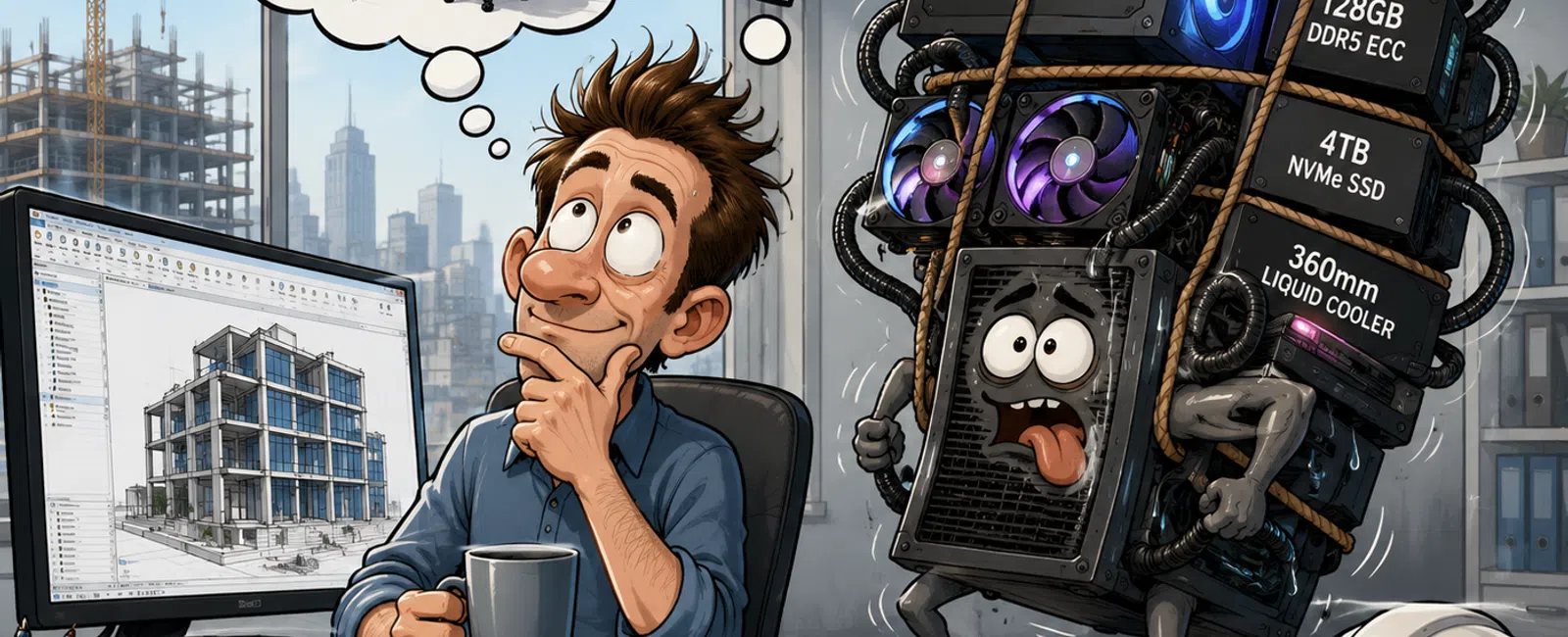
Recommended Revit Workstation Specifications for 2026
Most architecture professionals using Autodesk Revit in 2026 should have a Windows workstation with a recent high-clock-speed Intel Core Ultra 7, Intel Core Ultra 9, AMD Ryzen 7, or AMD Ryzen 9 processor, at least 32 GB of RAM, a 1 TB NVMe solid-state drive, and a dedicated graphics card with at least 8 GB of video memory.
Users working with large models, point clouds, multiple linked files, photorealistic rendering, virtual reality, or several design applications at once should generally move to 64 GB or 128 GB of RAM, a higher-performance processor, and a graphics card with 12–24 GB of video memory.
The most expensive computer is not automatically the best Revit workstation. Revit performance depends on balancing the processor, memory, graphics card, storage, cooling, network, and the actual work each employee performs. A workstation built for a BIM manager may need a different configuration from one used by a project architect, renderer, or occasional Revit user.
Three Recommended Revit Workstation Tiers
| Workstation Tier | Recommended Use | Processor | Memory | Graphics | Storage |
|---|---|---|---|---|---|
| Professional Standard | Typical architectural production, documentation, and moderate-size Revit models | Recent Intel Core Ultra 7 or AMD Ryzen 7 with strong single-core performance | 32 GB | Dedicated GPU with 8 GB VRAM | 1 TB NVMe SSD |
| Advanced BIM | Large linked models, multidisciplinary coordination, point clouds, and heavy multitasking | Recent Intel Core Ultra 9 or AMD Ryzen 9 with strong single-core performance | 64 GB | Dedicated GPU with 12–16 GB VRAM | 2 TB NVMe SSD |
| Visualization and Power User | Revit plus rendering, Enscape, Twinmotion, Lumion, 3ds Max, virtual reality, or very large models | High-end Intel Core Ultra 9, AMD Ryzen 9, or workstation-class processor selected for the full application mix | 64–128 GB | High-performance GPU with 16–24 GB VRAM | 2 TB or larger NVMe SSD |
These are practical planning recommendations rather than universal minimum requirements. The correct configuration should be based on model size, linked files, rendering tools, workload, employee role, expected useful life, and budget.
The Five-Part Revit Workstation Selection Framework
1. Start With the Employee's Actual Workflow
Do not purchase every workstation from a single standard specification without considering how employees use the machine. Begin by placing each user into a practical workload category.
- Light Revit user: Opens models occasionally, reviews drawings, performs markups, or completes basic documentation.
- Production user: Works in Revit for much of the day and regularly uses AutoCAD, Bluebeam, Microsoft Teams, Outlook, and web-based project systems.
- Advanced BIM user: Manages large central models, linked files, worksets, coordination tools, point clouds, and multiple applications.
- Visualization user: Uses Revit alongside Enscape, Twinmotion, Lumion, 3ds Max, Adobe applications, or video tools.
- BIM manager: Troubleshoots models, manages content, audits files, coordinates consultants, and may run multiple Revit versions.
A light user and a visualization specialist should not receive identical machines. Standardizing around two or three approved workstation tiers usually produces a better balance of performance, supportability, and cost.
2. Prioritize the Processor for Core Revit Work
For most everyday Revit activities, processor speed is one of the most important performance factors. Many common operations do not scale perfectly across a large number of processor cores, so a processor with strong per-core performance may provide a better experience than a slower processor with many more cores.
Prioritize a modern processor with:
- Strong single-core or lightly threaded performance
- High sustained clock speeds
- Good cooling under extended workloads
- A current hardware platform with a reasonable upgrade path
- Business-class warranty support
More cores become valuable when the workstation also performs CPU rendering, simulation, video encoding, or other heavily threaded work. Buy for the complete application mix rather than Revit alone.
3. Provide Enough Memory for Revit and Multitasking
Insufficient memory can make a modern workstation feel slow even when it has a powerful processor. Revit users rarely run only Revit. A typical employee may also have Teams, Outlook, Bluebeam, several browser tabs, Autodesk Construction Cloud, Adobe applications, and multiple linked models open at the same time.
| Memory | Suitable For | Key Limitation |
|---|---|---|
| 16 GB | Basic review, training, or very light workloads | Usually too restrictive for a primary professional Revit workstation |
| 32 GB | Standard professional Revit production | May be insufficient for very large files, point clouds, or heavy multitasking |
| 64 GB | Advanced BIM, large linked models, rendering, and multitasking | Higher cost, but often the most practical power-user configuration |
| 128 GB | Exceptional model sizes, major point-cloud workloads, rendering, and specialized power users | Unnecessary for many employees |
For most architecture firms, 32 GB should be treated as the practical starting point for new production workstations. Specify 64 GB for BIM managers, advanced users, visualization staff, and employees working with unusually large datasets.
4. Match the Graphics Card to Visualization Needs
The graphics card affects viewport performance, display resolution, visual styles, rendering tools, and other GPU-accelerated applications. However, buying the most expensive available GPU may produce little benefit for a user who primarily creates construction documents in Revit.
Evaluate the graphics card based on:
- Model complexity
- Number and resolution of monitors
- Use of real-time rendering
- Virtual reality requirements
- Use of point clouds
- Other applications that depend heavily on the GPU
- Driver stability and application compatibility
For standard Revit production, a modern dedicated graphics card with 8 GB of VRAM is a sensible baseline. Advanced visualization users should generally have 12–24 GB of VRAM, depending on their rendering software and project complexity.
Professional workstation GPUs can offer certified drivers, enterprise management features, and longer product lifecycles. High-end consumer GPUs may provide stronger rendering performance for the price. The correct choice depends on whether the firm prioritizes certification, stability, rendering speed, acquisition cost, or a combination of those factors.
5. Use Fast Storage and Maintain Free Capacity
Every new Revit workstation should use an NVMe solid-state drive. Mechanical hard drives should not be used as the primary system or application drive for a modern design workstation.
A practical storage standard is:
- 1 TB NVMe SSD: Standard production workstation
- 2 TB NVMe SSD: Advanced users, large local caches, point clouds, visualization assets, or multiple Revit versions
- Secondary storage: Only when required for specialized local data, scratch files, or rendering content
Storage performance can decline when a drive is nearly full. Maintain adequate free space for Windows updates, temporary files, Autodesk caches, local project data, and application growth.
Desktop or Laptop: Which Is Better for Revit?
A desktop workstation usually provides more performance per dollar, better cooling, easier component replacement, and greater upgrade flexibility. A laptop provides mobility but introduces compromises in heat, fan noise, sustained performance, battery life, screen size, and repairability.
| Factor | Desktop Workstation | Mobile Workstation |
|---|---|---|
| Performance per dollar | Usually better | Usually lower |
| Sustained performance | Better cooling and fewer thermal limits | Can slow during extended heavy workloads |
| Mobility | Limited | Excellent |
| Upgrade options | Often supports memory, storage, and GPU upgrades | Frequently limited to storage or memory, and some models cannot be upgraded |
| Repairability | Generally easier | Can require specialized parts or depot repair |
| Best use | Full-time office production and visualization | Hybrid staff, site visits, travel, and employees who need one primary portable system |
A mobile workstation used at a desk should normally be paired with a commercial dock, wired network connection, full-size keyboard, professional mouse, external monitors, and reliable power delivery.
Avoid thin consumer laptops for employees who spend most of the day in Revit. A machine can have an impressive processor and GPU specification but still perform poorly if its cooling system cannot sustain those components under load.
Should Revit Users Have Professional or Gaming Graphics Cards?
Both professional and consumer graphics cards can be appropriate, but the decision should be intentional.
Professional Workstation GPU Advantages
- Drivers developed and tested for professional applications
- Longer product availability
- Enterprise support options
- Potential application certification
- Features designed for managed business environments
Consumer GPU Advantages
- More rendering performance at some price points
- Broader availability
- Strong support for visualization and real-time rendering tools
- Competitive performance for users who rely on GPU rendering
Do not select a GPU solely from gaming benchmark results. Test the complete workflow, including Revit, rendering applications, display configuration, drivers, plug-ins, and representative project files.
How Much Storage Does a Revit Workstation Need?
A 512 GB drive may satisfy basic software requirements, but it is often too small for a professional architecture workstation expected to remain in service for several years.
Storage is consumed by:
- Windows and recovery files
- Several Autodesk applications and versions
- Local Revit files and collaboration caches
- Point clouds
- Material libraries
- Rendering assets
- Bluebeam and Adobe files
- OneDrive or cloud-synchronized folders
- Temporary files
- Application updates
For that reason, 1 TB is the recommended baseline, while 2 TB is more appropriate for advanced BIM and visualization users.
What Display Setup Should an Architecture Firm Standardize?
Monitor selection affects employee comfort and productivity even though it does not directly make Revit calculations faster.
A practical standard for most production users is:
- Two 27-inch monitors
- At least 2560-by-1440 resolution
- Height-adjustable stands or monitor arms
- Consistent scaling and color settings
- Commercial models with multi-year warranties
Some users may benefit from a single ultrawide display, a 4K monitor, or a third screen for Teams, specifications, schedules, or reference material. Evaluate the graphics card and docking solution before standardizing high-resolution multi-monitor configurations.
Network and Storage Problems Can Look Like Workstation Problems
A workstation upgrade will not fix every Revit complaint. Slow opening, saving, synchronizing, or accessing linked files may involve the network, server, cloud platform, model design, or remote-access method.
Before replacing computers, investigate:
- Wired network speed and switch capacity
- Wireless coverage and congestion
- Internet bandwidth and latency
- File server storage performance
- Autodesk Construction Cloud connectivity
- VPN configuration
- Remote desktop performance
- Revit model health
- Number and location of linked files
- Antivirus exclusions and security policies
- Revit add-ins
- Available workstation memory and storage
911 IT supports these connected issues through its IT support for engineering and architecture firms, including CAD and BIM performance, workstations, cloud collaboration, networking, cybersecurity, and data protection.
Common Revit Workstation Purchasing Mistakes
Buying Based on Minimum Requirements
Minimum specifications indicate whether software may run. They do not necessarily describe a productive professional workstation that will support multiple applications and remain useful for four or five years.
Choosing a Processor Only by Core Count
A large core count sounds impressive, but many everyday Revit operations benefit more from strong performance per core. Evaluate benchmark results that reflect the applications your team actually uses.
Overspending on the GPU and Underspending on Memory
A high-end graphics card cannot compensate for insufficient RAM. A balanced workstation often provides a better user experience than one component consuming most of the budget.
Buying Consumer Laptops That Cannot Sustain Performance
Thin laptops can reduce processor and graphics speeds when they become hot. Confirm the machine is designed for prolonged professional workloads rather than short benchmark bursts.
Ignoring Warranty Response Times
A powerful workstation is not useful when it sits in a repair depot for two weeks. Business-class warranties with next-business-day onsite service can reduce disruption.
Standardizing One Configuration for Every Employee
Uniformity simplifies support, but forcing every role into one specification can create unnecessary cost or poor performance. Standardize two or three tiers instead.
Waiting Until Computers Fail
Emergency purchases often result in inconsistent models, rush shipping, limited options, and unplanned downtime. A documented lifecycle plan produces better decisions.
How Often Should Architecture Firms Replace Revit Workstations?
Most architecture firms should plan for a workstation lifecycle of approximately four to five years. Advanced BIM and visualization systems may need replacement closer to three or four years, while light-use systems may remain productive longer.
| Workstation Type | Typical Planning Cycle | Replacement Trigger |
|---|---|---|
| Standard Revit workstation | 4–5 years | Performance no longer supports normal project work or warranty coverage expires |
| Advanced BIM workstation | 3–4 years | Large models, linked files, or multitasking regularly exceed available resources |
| Visualization workstation | 3–4 years | Rendering time affects deadlines or new software requires substantially stronger GPU resources |
| Light-use workstation | 5 years or longer when appropriate | Security support, reliability, or employee productivity becomes unacceptable |
Age alone should not determine replacement. Review warranty status, failure history, software compatibility, security support, employee role, project requirements, and measurable performance.
A Five-Year Workstation Lifecycle Process
- Inventory every workstation: Record employee, role, model, age, warranty, processor, memory, GPU, storage, and operating system.
- Create approved tiers: Define standard, advanced BIM, and visualization specifications.
- Assign a target replacement year: Avoid replacing the entire firm at once unless business conditions require it.
- Review specifications annually: Processor, GPU, software, and pricing conditions change.
- Measure outcomes: Track support tickets, user complaints, failures, rendering time, and project disruption.
This process turns workstation replacement into a predictable operating plan rather than an emergency expense. It can be incorporated into a broader technology roadmap through managed IT services.
How Much Should a Revit Workstation Cost?
Workstation pricing changes frequently, but architecture firms can use the following planning ranges before requesting current quotes:
| Tier | Typical Planning Range | Appropriate For |
|---|---|---|
| Professional Standard | $1,800–$2,800 | General Revit production and documentation |
| Advanced BIM | $2,800–$4,500 | Large models, coordination, point clouds, and heavy multitasking |
| Visualization and Power User | $4,000–$7,000 or more | Rendering, virtual reality, advanced visualization, and specialized workloads |
These ranges may exclude monitors, docks, peripherals, deployment labor, software, extended warranties, and data migration. Prices should be validated when the firm is ready to purchase.
Do not compare only the acquisition price. Consider the workstation's expected useful life, warranty, employee downtime, supportability, energy use, upgrade options, and the financial impact of slow performance.
Example Workstation Plan for a 35-Person Architecture Firm
Consider a 35-person firm with the following roles:
- 22 production architects and designers
- 4 BIM managers and advanced users
- 3 visualization specialists
- 6 employees with light Revit or administrative workloads
A practical standard could include:
- 22 professional-standard workstations: Recent Core Ultra 7 or Ryzen 7 processor, 32 GB RAM, 8 GB GPU, and 1 TB NVMe SSD
- 4 advanced BIM workstations: Core Ultra 9 or Ryzen 9 processor, 64 GB RAM, 12–16 GB GPU, and 2 TB NVMe SSD
- 3 visualization workstations: High-end processor, 64–128 GB RAM, 16–24 GB GPU, and 2 TB NVMe SSD
- 6 business systems: Configured for the applications those employees actually use rather than automatically purchasing Revit-class hardware
If the firm replaces approximately seven or eight systems each year, it can spread the investment across a predictable lifecycle while keeping critical users on current hardware.
Should Architecture Firms Use Azure Virtual Desktop Instead?
Cloud-hosted or virtual workstations can be useful for remote employees, contractors, temporary staff, mergers, multiple offices, or firms that need centralized access to project resources. They are not automatically less expensive or faster than physical workstations.
Compare virtual and physical workstations based on:
- User location
- Internet reliability and latency
- GPU requirements
- Peripheral support
- Monthly cloud consumption
- Security requirements
- Data location
- Support capacity
- Workload variability
- Business continuity objectives
911 IT's cloud services include virtual desktops, remote access, Microsoft 365, cloud storage, and collaboration solutions. The right design may be physical, virtual, or a hybrid of both.
Security Requirements for Revit Workstations
Performance should never be separated from cybersecurity. Architecture workstations contain credentials, client communications, drawings, contracts, specifications, and intellectual property.
Every managed workstation should include:
- Full-disk encryption
- Endpoint detection and response
- Automated operating-system patching
- Controlled local administrator access
- Multi-factor authentication for cloud accounts
- Application and browser updates
- Device inventory and monitoring
- Secure remote support
- Documented backup and recovery procedures
- A defined process for lost or stolen devices
Learn more about protecting design systems and project information through cybersecurity services and business continuity services.
Questions to Ask a Workstation Vendor or IT Provider
- Which employee role and workload was this configuration designed for?
- What sustained processor performance can we expect under extended workloads?
- Can the memory be upgraded to 64 GB or 128 GB later?
- Does the system use replaceable NVMe storage?
- Which graphics driver will be installed and managed?
- Has the complete configuration been tested with Revit and our rendering tools?
- What is the warranty response time?
- Is onsite repair included?
- How will user data and settings be migrated?
- Who will install Autodesk applications, plug-ins, printers, and security tools?
- How will the workstation be documented and added to inventory?
- What happens to the old computer and its stored data?
- How will performance be measured after deployment?
- Does the quote include monitors, docks, accessories, and implementation?
- What is the expected replacement year?
A Revit Workstation Evaluation Scorecard
| Category | Questions to Score |
|---|---|
| Processor | Does it provide strong performance for Revit and the employee's other applications? |
| Memory | Is there enough RAM for the largest expected models and normal multitasking? |
| Graphics | Does the GPU match the user's visualization, display, and rendering requirements? |
| Storage | Is the NVMe drive large enough for applications, caches, project data, and future growth? |
| Cooling | Can the system sustain performance under long workloads? |
| Warranty | Does coverage include a response time appropriate for project deadlines? |
| Upgradeability | Can memory or storage be expanded economically? |
| Security | Can the device support encryption, endpoint protection, patching, and centralized management? |
| Standardization | Does the configuration fit one of the firm's approved workstation tiers? |
| Lifecycle cost | Does the expected useful life justify the total purchase and support cost? |
Frequently Asked Questions
Is 32 GB of RAM enough for Revit?
Yes, 32 GB is a practical baseline for many professional Revit users. Employees working with large linked models, point clouds, rendering applications, or heavy multitasking should generally have 64 GB. Exceptional workloads may justify 128 GB.
Does Revit need a powerful graphics card?
Revit needs a capable, compatible graphics card, but standard documentation work does not always benefit from the most expensive GPU. More powerful graphics become important for large visual models, high-resolution displays, real-time rendering, virtual reality, and related visualization software.
Is Intel or AMD better for Revit?
Both manufacturers offer processors suitable for professional Revit work. Compare current models based on application performance, sustained speed, system cooling, warranty, price, and the employee's complete software workload rather than selecting by brand alone.
Should we buy a desktop or laptop for Revit?
Choose a desktop for maximum performance, cooling, repairability, and value. Choose a mobile workstation when the employee genuinely needs portability. Hybrid employees can use a properly specified mobile workstation with a commercial dock and external monitors.
Can a Mac run Revit?
Revit is designed for Windows. Firms that use Apple hardware would need a supported Windows virtualization or remote-desktop strategy, which introduces additional complexity. For most dedicated Revit users, a business-class Windows workstation is the simpler choice.
How long should a Revit workstation last?
Plan for approximately four to five years for standard users and three to four years for advanced BIM or visualization users. Replace systems based on performance, warranty, reliability, security support, and business requirements rather than age alone.
Should every employee receive the same workstation?
No. Standardize a small number of approved tiers based on employee roles. This preserves consistency while avoiding overspending on light users or underpowering advanced users.
Can more RAM fix a slow Revit workstation?
It can help when the system is running out of memory, but it will not fix every problem. Slow performance can also involve the processor, storage, graphics driver, network, Revit model, linked files, add-ins, security software, or remote-access design.
How to Create a Workstation Standard for Your Firm
- List every Revit user and assign a workload category.
- Inventory the age and specifications of current computers.
- Identify the models and applications that create the heaviest demand.
- Define professional, advanced BIM, and visualization tiers.
- Test each tier using representative project files.
- Select business-class warranties and standard accessories.
- Create a four-to-five-year replacement schedule.
- Review the standard once per year.
911 IT helps architecture and engineering firms evaluate CAD and BIM performance, standardize workstations, plan hardware lifecycles, secure devices, and troubleshoot the network and cloud systems surrounding Revit. Schedule a 10-minute discovery call to review your firm's current workstations and create a practical upgrade plan.